

Sprint Collect Documentation
1. Overview and scope
Sprint Collect manages a complete supporting-document collection workflow for WordPress accounts.
Sprint Collect Free provides the core features: document creation, folder templates, private storage, user portal, administrative review, manual reminders and activity log. Sprint Collect Pro extends the Free plugin and unlocks automation and advanced features.
| Feature | Free | Pro |
|---|---|---|
| Private file collection | Yes | Yes |
| Document types and templates | Yes | Yes |
| Secure user portal | Yes | Yes |
| Review / approval / correction | Yes | Yes |
| Manual folder assignment | Yes | Yes |
| Manual reminders | Yes | Yes |
| History and essential tools | Yes | Yes |
| Essential / Complete / Expert modes | Yes | Yes |
| Automatic assignment by role | — | Yes |
| Advanced AND / OR / NOT conditions | — | Yes |
| Conditional messages | — | Yes |
| Automatic reminders | — | Yes |
| Advanced expiration alerts | — | Yes |
| Multiple recipients | — | Yes |
| HTML email customization | — | Yes |
| End-of-season workflow | — | Yes |
| Automatic application of retention policies | — | Yes |
| Advanced exports and configuration transfer | — | Yes |
| External document sources / integration imports | — | Yes |
| Detailed role-based permissions | — | Yes |
| Advanced diagnostics | — | Yes |
| Premium add-on management | — | Yes |
| Important: Sprint Collect Pro is not a standalone plugin. Sprint Collect Free must be installed and activated. Pro settings are designed to be preserved when Pro is temporarily unavailable. |
|---|
2. Installation and initial setup
Requirements
- WordPress: 6.5 or later (plugin tested up to 7.0.3).
- PHP: 8.0 or later.
- Administrator account: required to install plugins and complete the initial setup.
Installation
- Install and activate Sprint Collect Free.
- If you have Pro, install Sprint Collect Pro next.
- Open Sprint Collect > Licenses and activate the Pro key.
- Create or select the user portal page and add the [sprint_collect] shortcode to it.
- Create the required document types.
- Create one or more folder templates.
- Assign a template to a user to run an initial test.
- Configure the notification sender address and send a test email.
| Getting started tip: Begin with a single test template and a demo user account. Test the full workflow — assignment, document upload, review, correction, approval and reminder — before rolling it out to all members. |
|---|
3. Interface and display modes
Display modes simplify administration but do not change permissions or the features that are actually enabled. A hidden screen may still be accessible if the account has the required permissions.
| Mode | Visible content |
|---|---|
| Essential | Dashboard, folders, users, manual reminders, main settings and licenses. |
| Complete | Adds end-of-season tools, document types, templates, common tools and the activity log. |
| Expert | Adds add-ons, diagnostics, permissions, external sources and technical transfers. |
| Recommended mode: For a non-technical team, use Essential or Complete for day-to-day work. Keep Expert for advanced configuration, diagnostics and integrations. |
|---|
4. Dashboard
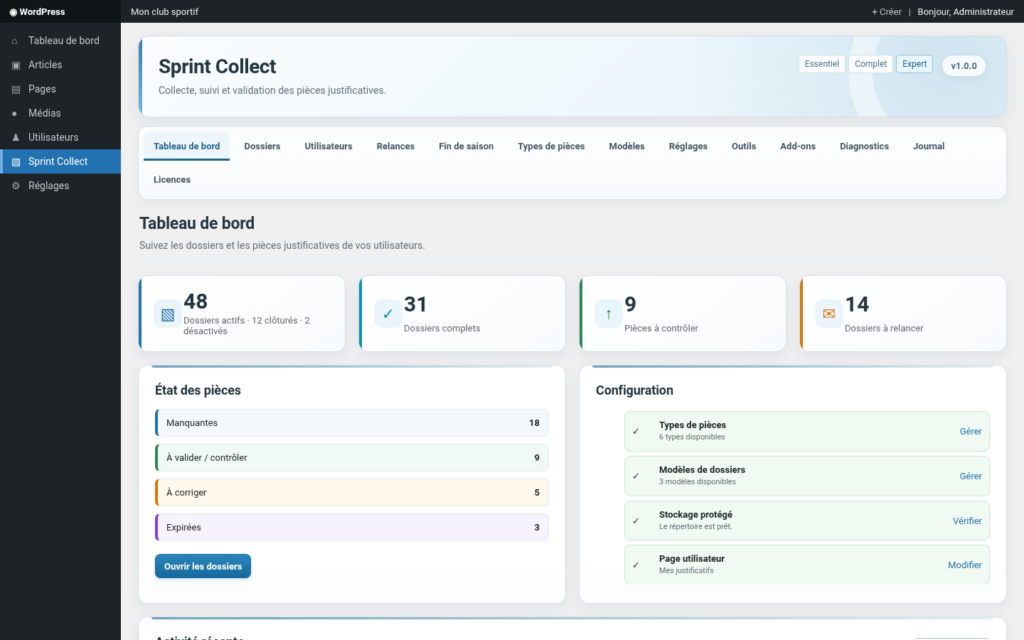
Figure 1 — Administrator dashboard — mock-up based on the plugin interface; sample data.
The dashboard provides an immediate overview of:
- active, closed or disabled folders;
- complete folders;
- received documents awaiting review;
- folders that require a reminder;
- overall document status: missing, awaiting review, requiring correction or expired;
- configuration health: document types, templates, private storage, user page and reminders.
5. Document types
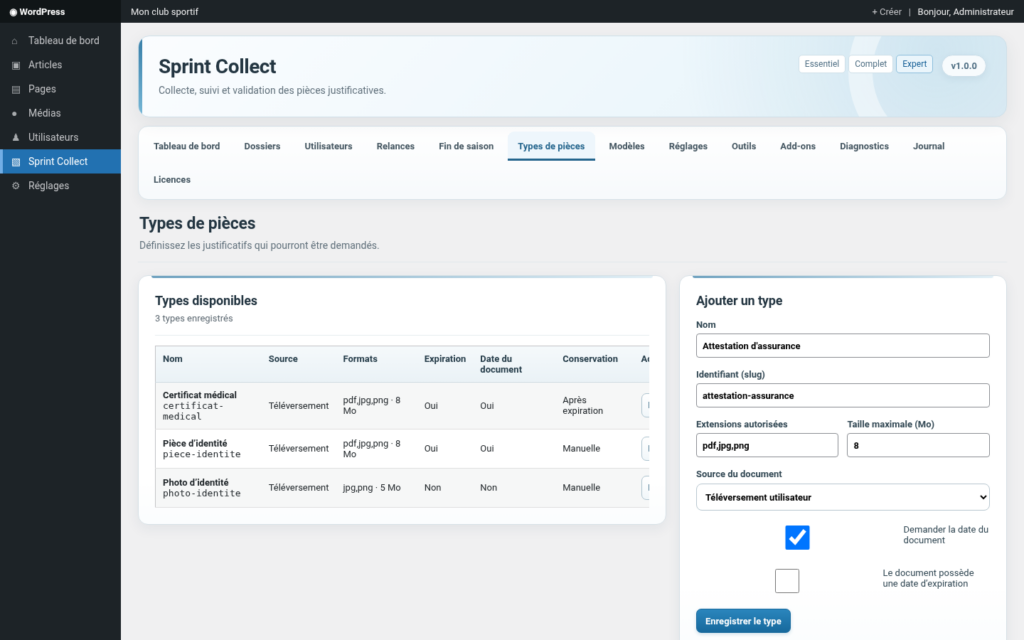
Figure 2 — Document type list and creation — mock-up based on the plugin interface; sample data.
A document type represents a reusable supporting document, such as a medical certificate, identity document, photo or insurance certificate. Each type can define:
- allowed file extensions and maximum file size;
- a document date;
- an expiration date;
- a document source;
- a retention policy after closure: manual, on closure, after a delay or after expiration.
| Free / Pro: Retention fields are visible in the core plugin. Automatic application of retention policies by the scheduled task depends on the Pro “Retention Policies” feature. Files in an active folder are not deleted by these rules. |
|---|
6. Folder templates
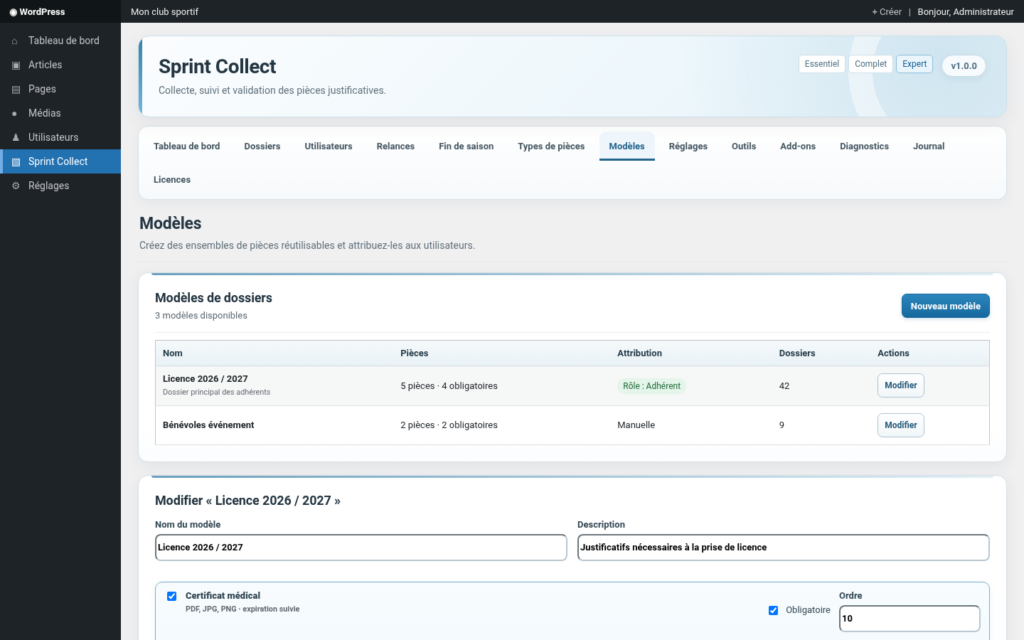
Figure 3 — Template creation and advanced conditions — mock-up based on the plugin interface; sample data.
A template is a reusable checklist of documents. In Free, you can build the template, choose the included document types and mark those that are required. Pro also adds:
- automatic assignment by WordPress role;
- advanced conditions combining AND / OR / NOT;
- conditions specific to an individual document;
- conditional messages for the user;
- assignment rules based on data made available through integrations.
| Settings preservation: When a Pro feature is unavailable, previously saved conditions are designed to remain available in read-only mode rather than being deleted. |
|---|
7. Folders and document review
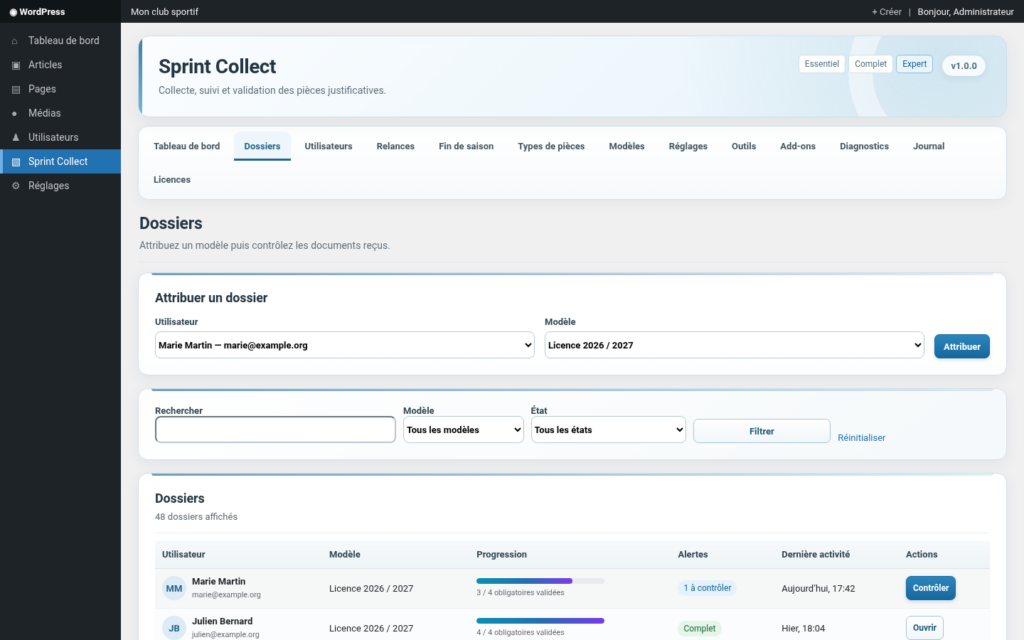
Figure 4 — Folder list and manual assignment — mock-up based on the plugin interface; sample data.
The Folders tab is used to assign a template, filter folders and open those that require action. Progress indicators make it easy to identify incomplete folders or folders awaiting review.
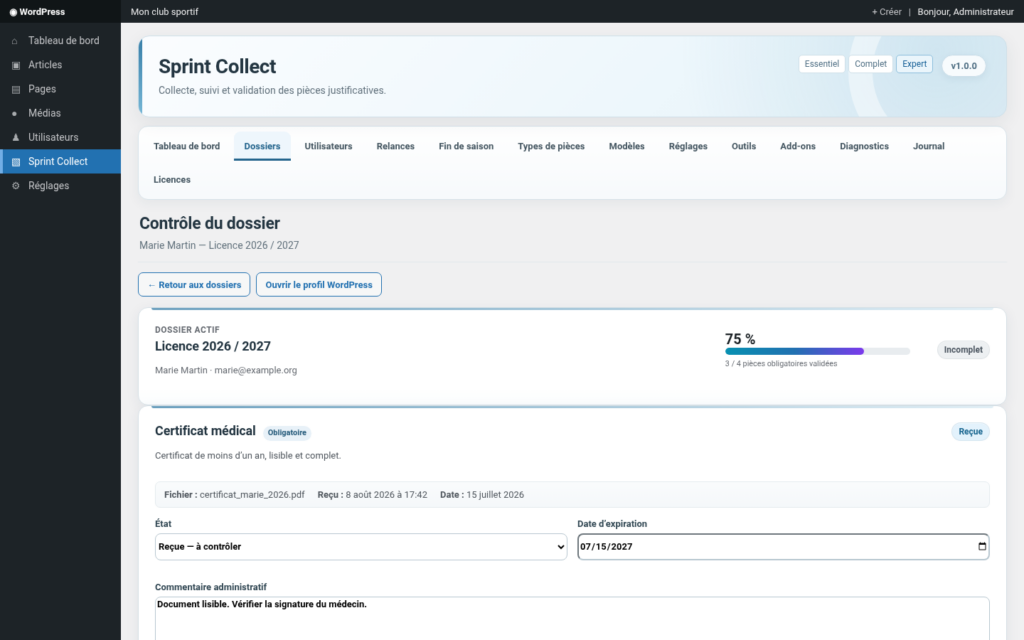
Figure 5 — Detailed folder review — mock-up based on the plugin interface; sample data.
Common document statuses
- Missing: no file has been uploaded yet.
- Received: the file has been uploaded and must be reviewed.
- Needs correction: the document must be replaced or completed; the comment explains the required correction.
- Approved: the document has been accepted.
- Expired: the expiration date has passed.
From a folder review screen, the administrator can view the file, change its status, enter dates, add a comment and save the decision. The plugin also handles closing, reopening, purging and deletion according to the account’s permissions.
8. Users
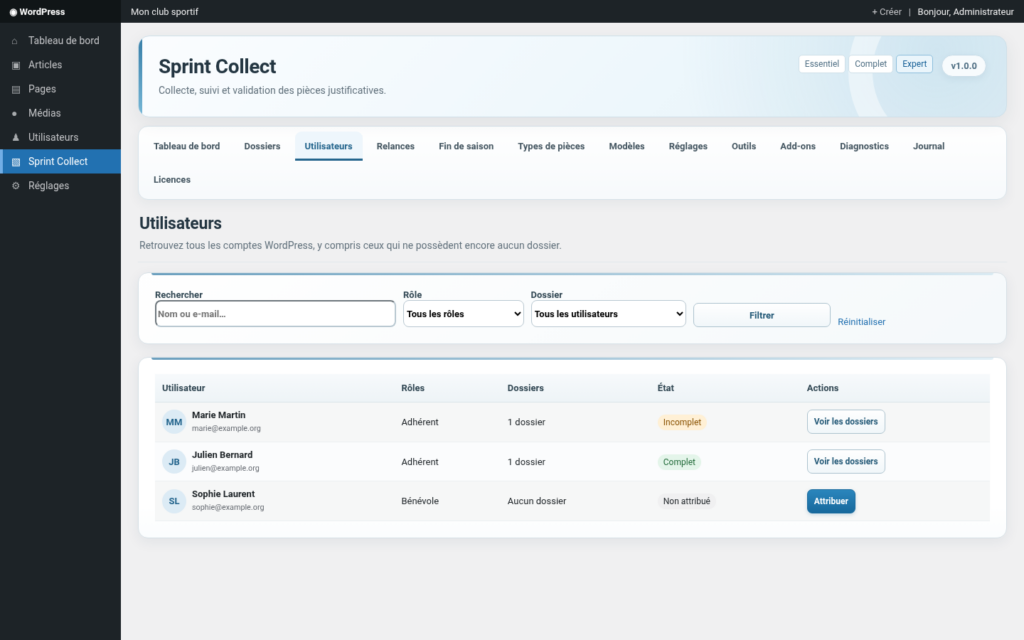
Figure 6 — WordPress accounts and their folders — mock-up based on the plugin interface; sample data.
This view lists WordPress accounts with or without a folder. It is useful for:
- identifying a member who has not yet been assigned any folder;
- opening a user’s folders directly;
- quickly assigning a template;
- filtering by role or status;
- closing, purging or deleting a user according to the available permissions and safeguards.
| Deletion: Full deletions are irreversible operations and the plugin screens use enhanced confirmation steps. Always check filters and backups before performing a bulk action. |
|---|
9. User portal
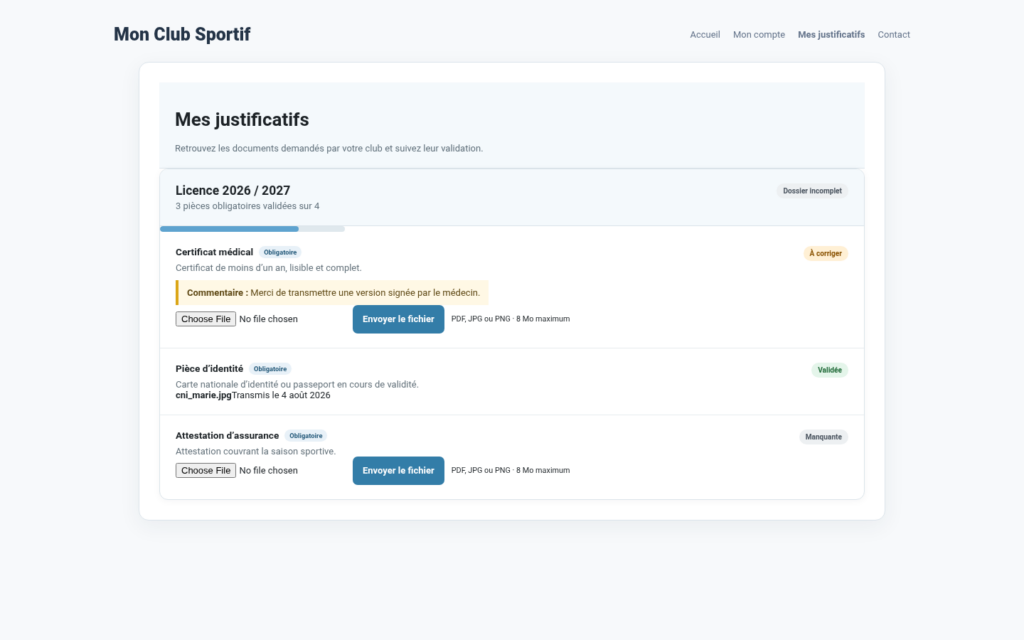
Figure 7 — User portal for uploading and tracking supporting documents — mock-up based on the plugin interface; sample data.
The [sprint_collect] shortcode displays the collection area for a logged-in user. Each folder shows the requested documents, whether they are required or optional, their status, administrative comments and the upload form.
- Files remain outside the public WordPress Media Library.
- Users can immediately see documents that are missing, require correction or have been approved.
- File format and size rules are enforced on upload.
- The portal can be used in a representation/delegation context when the permissions configured by the site allow it.
10. Reminders
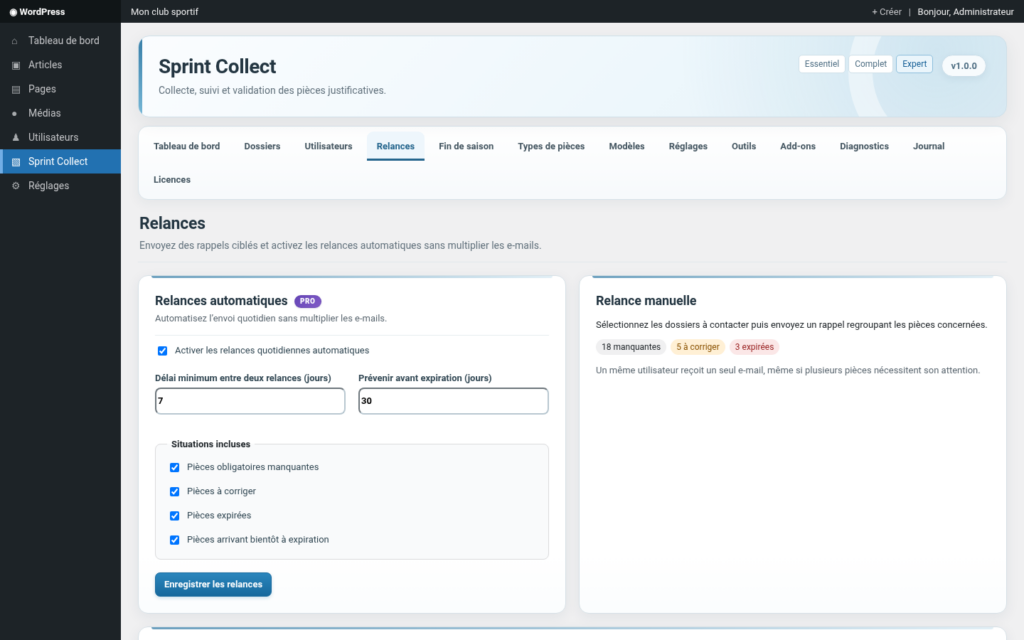
Figure 8 — Manual and automatic Pro reminders — mock-up based on the plugin interface; sample data.
Manual reminders — Free
- The list shows folders that require attention.
- Reasons may include documents that are missing, require correction, have expired or are about to expire.
- Multiple folders can be selected for a bulk email.
Automatic reminders — Pro
- enable an automatic daily reminder;
- set a minimum delay between two reminders;
- send reminders ahead of expiration dates;
- choose which situations are included in the automation.
| Built-in anti-spam approach: The module groups items that need attention to avoid sending multiple emails to the same person. |
|---|
11. End of seasonPro
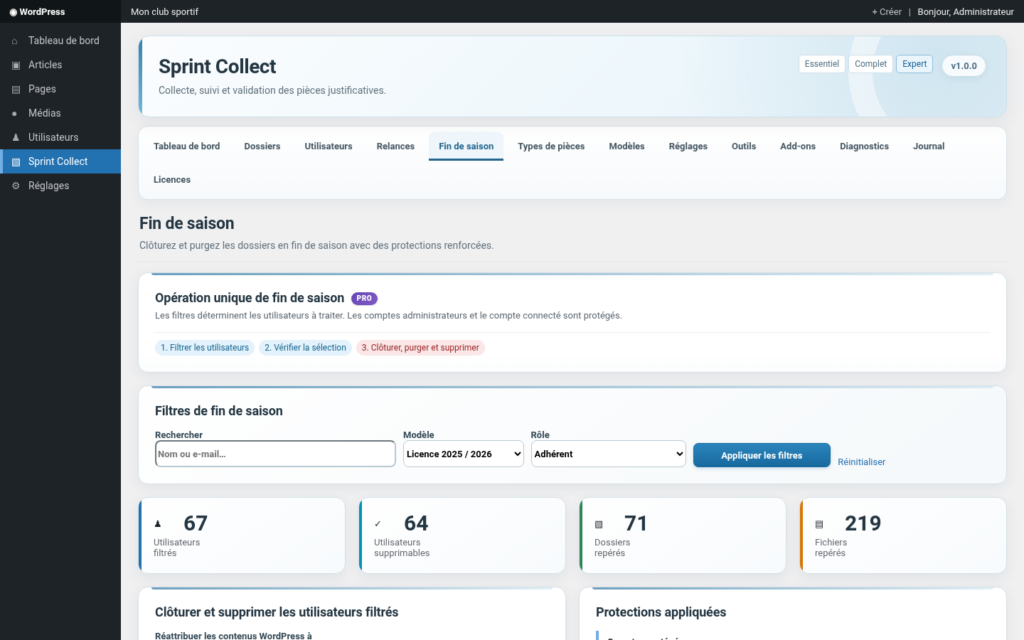
Figure 9 — End-of-season workflow and safeguards — mock-up based on the plugin interface; sample data.
The end-of-season workflow is a bulk operation designed to process accounts and folders selected using filters. The workflow includes a preliminary review followed by an enhanced confirmation step before deletion.
- filter by name/email, template and role;
- summary of the number of affected users, folders and files;
- optional reassignment of WordPress content;
- automatic protection of the currently logged-in account and administrators;
- retention of a minimal history without files, file names or administrative comments.
| Warning: This operation may delete WordPress accounts together with all their Sprint Collect folders and files. It should only be performed by an administrator who has approved the retention strategy and has a recent backup. |
|---|
12. Settings and notifications
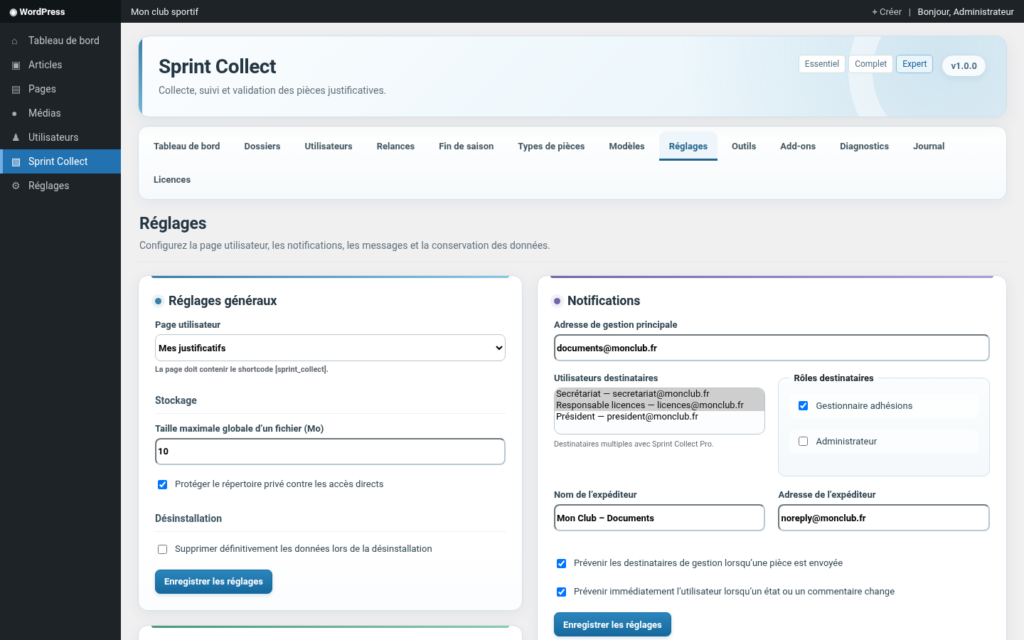
Figure 10 — Settings, notifications and Pro email customization — mock-up based on the plugin interface; sample data.
The main settings cover the portal page, storage, uninstall behavior and messaging. Notifications can be sent to a primary management address and, with Pro, to multiple users or roles.
Pro email customization
- choose between the site-wide email template and Sprint Collect styling;
- logo, header name and footer;
- customize the subject and HTML body for each notification type;
- dynamic variables such as the user name, folder or document list;
- preview before saving.
| Email test: The test button checks that WordPress accepts the send request. A positive response from WordPress does not guarantee final delivery: hosting, DNS or the SMTP server may still affect deliverability. |
|---|
13. Tools, diagnostics and exports
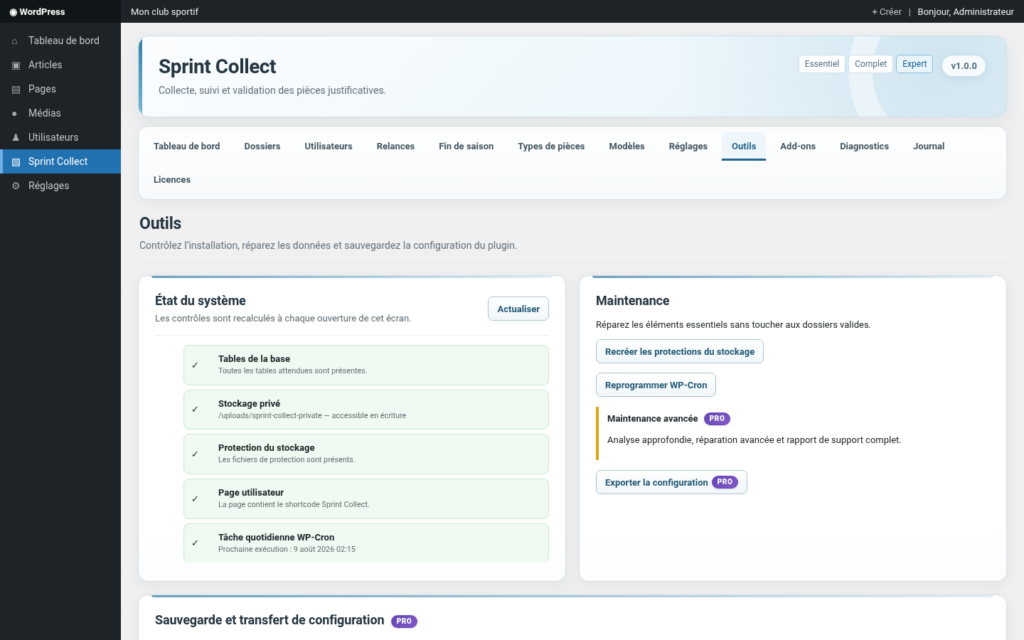
Figure 11 — System status, maintenance and configuration transfer — mock-up based on the plugin interface; sample data.
The essential tools check items such as database tables, write access to private storage, directory protection, the user page and the WP-Cron task. Pro adds more advanced maintenance and export features.
Important Pro features
- full diagnostic report and JSON export;
- log of captured technical errors;
- configuration export including document types, templates, roles, notifications and retention rules;
- configuration import and merge on another site;
- advanced CSV exports for folders and documents.
| What the configuration export does not include: The Pro configuration export does not include users, folders or private files. It is designed to transfer structure and settings, not collected personal data. |
|---|
14. Add-ons and external sources
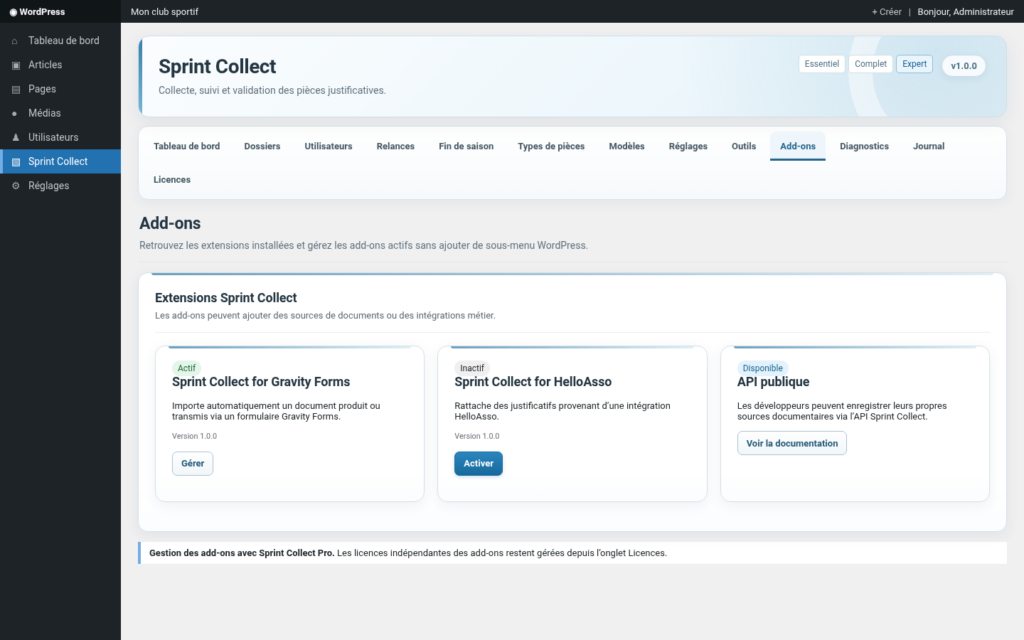
Figure 12 — Sprint Collect add-on management — mock-up based on the plugin interface; sample data.
The core plugin exposes an API that allows add-ons to register document sources and integrations. Pro supports premium add-on management as well as secure imports of files from an external source or integration.
- a source can declare that it supports external imports;
- imports verify the folder, document, status and permissions;
- integrations can use external identifiers to prevent duplicates;
- independent add-on licenses are managed in the Licenses tab.
15. Licenses
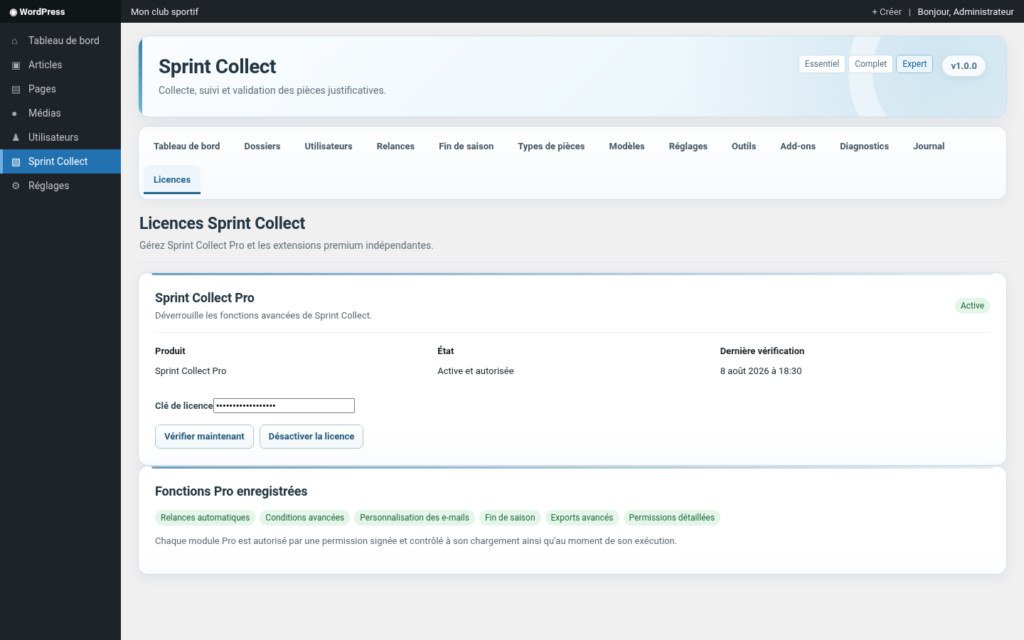
Figure 13 — Sprint Collect Pro license status — mock-up based on the plugin interface; sample data.
The Licenses tab shows the status of Sprint Collect Pro and, where applicable, independent premium products. The Pro license controls the signed permissions required to load and run advanced modules.
- activate the key;
- manually check the status;
- deactivate the license;
- display the authorized Pro features;
- preserve data and settings if Pro features become unavailable.
| External connection: Sprint Collect Free does not contact an external service on its own. Sprint Collect Pro contacts the Sprint Plugins licensing service for activation and verification after a key has been entered. |
|---|
16. Security, privacy and retention
File storage
- Files are stored in a protected private directory under the WordPress uploads folder.
- They are not added to the public Media Library.
- The plugin also stores folder metadata, statuses, dates, comments and approval information.
WordPress privacy
- The plugin adds suggested text to the WordPress Privacy Policy Guide.
- It integrates with the personal data export and erasure tools.
- The site administrator remains responsible for the legal basis, access rights and retention periods that apply to each supporting document.
Permissions
Pro provides a detailed role-based permissions matrix. The “Supporting Documents Manager” role is created automatically, while administrators retain all permissions. Permission checks are enforced server-side, including for AJAX actions.
| Recommendation: Only grant access to supporting documents to roles that genuinely need it. Collected documents may contain sensitive information, so WordPress access should be limited, logged and reviewed regularly. |
|---|
17. Recommended day-to-day workflow
| 1. Prepare | Create the document types and folder template. |
|---|---|
| 2. Assign | Assign the template manually or automatically with Pro. |
| 3. Collect | The user uploads files through the portal. |
| 4. Review | The team opens received documents and approves them or requests a correction. |
| 5. Remind | Send manual reminders or let Pro follow the automatic schedule. |
| 6. Close | Once the workflow is complete, close the folders and apply the retention policy. |
| 7. Archive / purge | At the end of the season, use the Pro lifecycle tools if bulk deletion is required. |
| Quick routine: For regular use, the team can limit its day-to-day work to four screens: Dashboard → Folders → Users → Reminders. The other screens are mainly useful during setup or at key points in the season. |
|---|
18. FAQ and troubleshooting
Where are files stored?
In a private directory under the WordPress uploads folder, outside the public Media Library.
Does Sprint Collect require Sprint Club?
No. Sprint Club is optional and can, for example, provide navigation or inherit display mode settings.
Does the Free plugin impose a limit or expiration?
The Free features described in the plugin are not time-limited. Pro is a separate optional extension.
Why is a test email accepted but not received?
WordPress may accept the send request even if the hosting server, SMTP configuration or anti-spam rules subsequently block the message. Check the SMTP configuration and logs.
Why is a tab not visible?
The display mode may hide some screens. WordPress permissions may also remove certain tabs. Temporarily switch to Expert mode to diagnose the issue.
What happens if Pro is deactivated?
The core plugin remains usable for Free features. Existing Pro settings are designed to be preserved, while the corresponding features become unavailable.
Can the configuration be transferred to another site?
Yes, with Pro: the JSON export can transfer document types, templates, roles, notifications and rules, without users, folders or files.
How can accidental deletion at the end of the season be avoided?
Use the filters, review the summary, check protected accounts, make a backup, then use only the plugin’s designated confirmed action.